

Ensure you are logged out of the GoldRush platform so that there is no login conflict with any existing GoldRush account you may have.
1. Create a Quicknode Endpoint
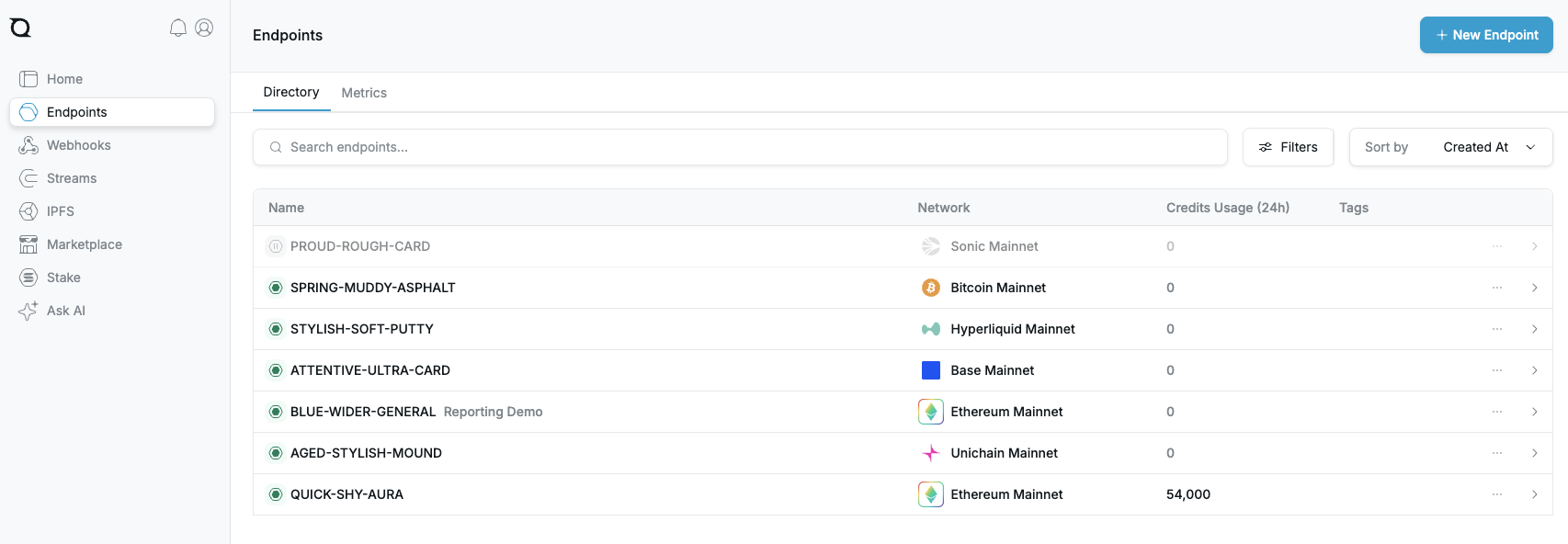
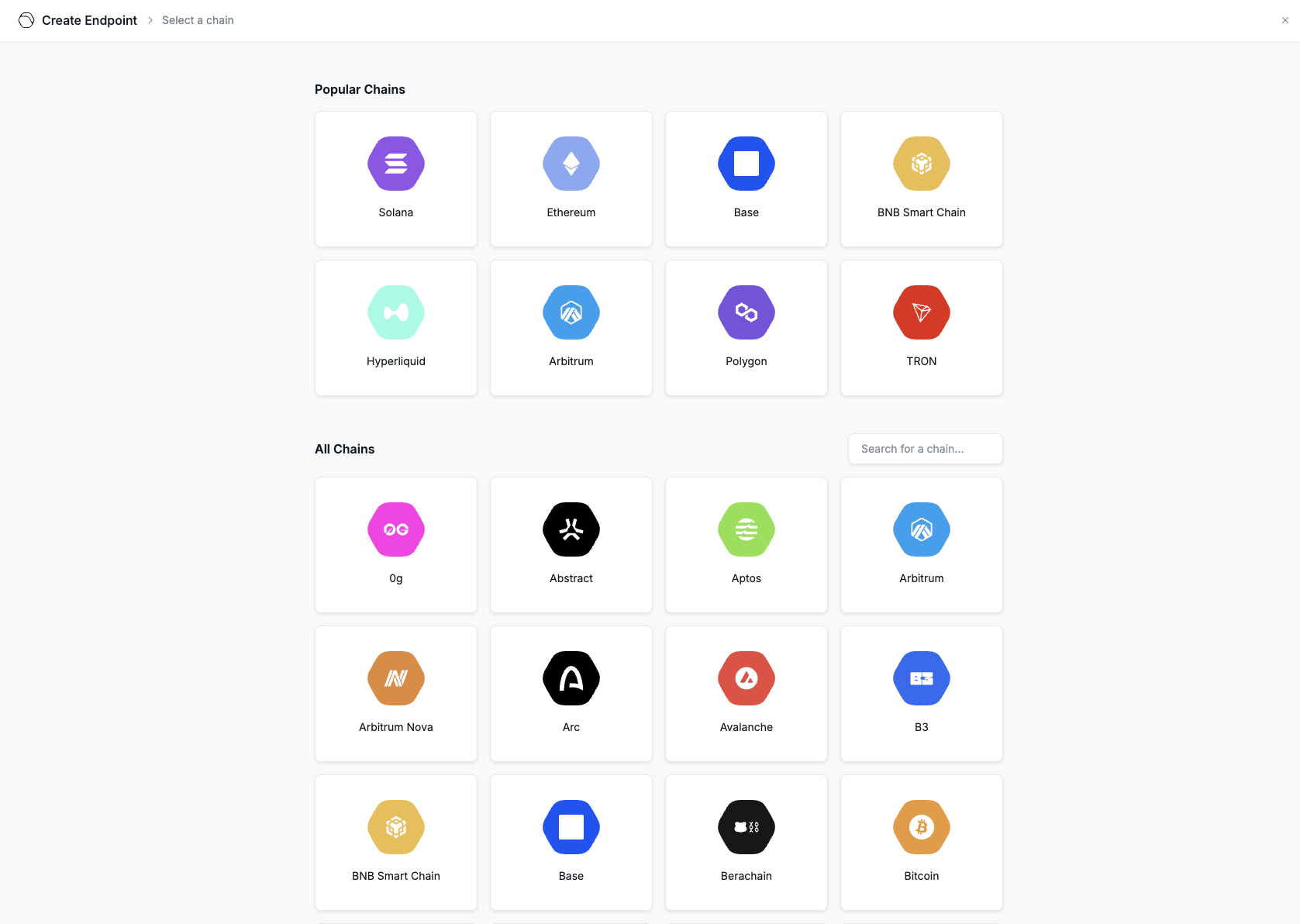
- Sign in to the Quicknode Dashboard and create a new endpoint (or open an existing one) on the chain where you want to use GoldRush.
2. Switch to the Add-ons tab
- Inside the endpoint view, select the Add-ons tab that sits alongside “Overview”, “Metrics”, “Security”, and “Logs”.
- Quicknode lists every third-party add-on that is available for your endpoint. You should see the specific GoldRush API add-on listed under Installed Third-Party Add-Ons.

3. Sign in to the GoldRush dashboard and access your API key
- Click Sign in to Dashboard on the GoldRush card. Quicknode opens the dedicated GoldRush dashboard in a new tab and automatically authenticates you with your Quicknode credentials.
- Access and manage your API key. Note that you only get 1 active API key at any time through the Quicknode marketplace.
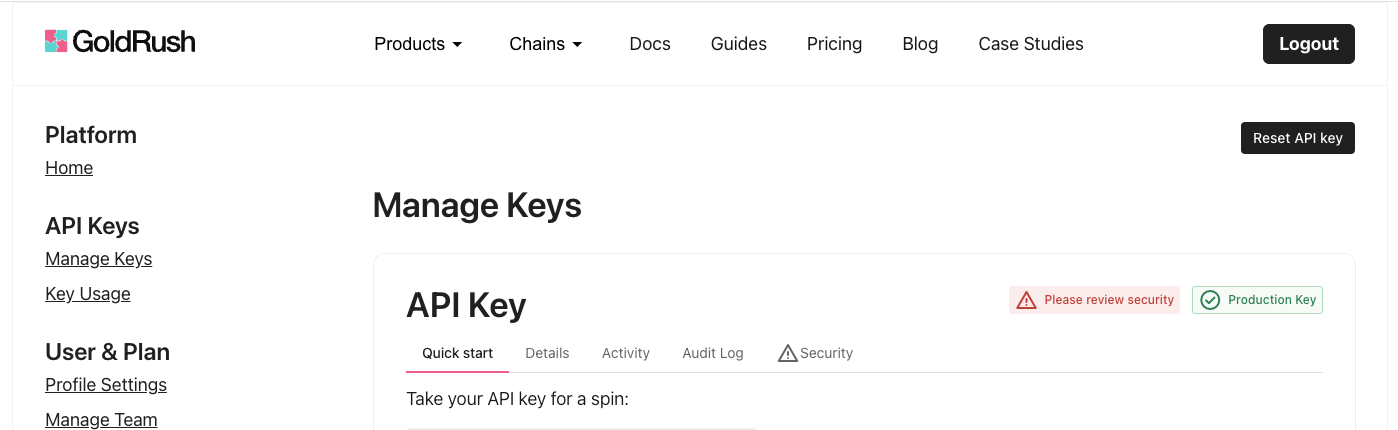
- To confirm your Quicknode account is correctly setup:
- Check the Profile Settings tab to see your Email appear with a Quicknode identifier (e.g.
quicknode_...@covalentsvcacct.com).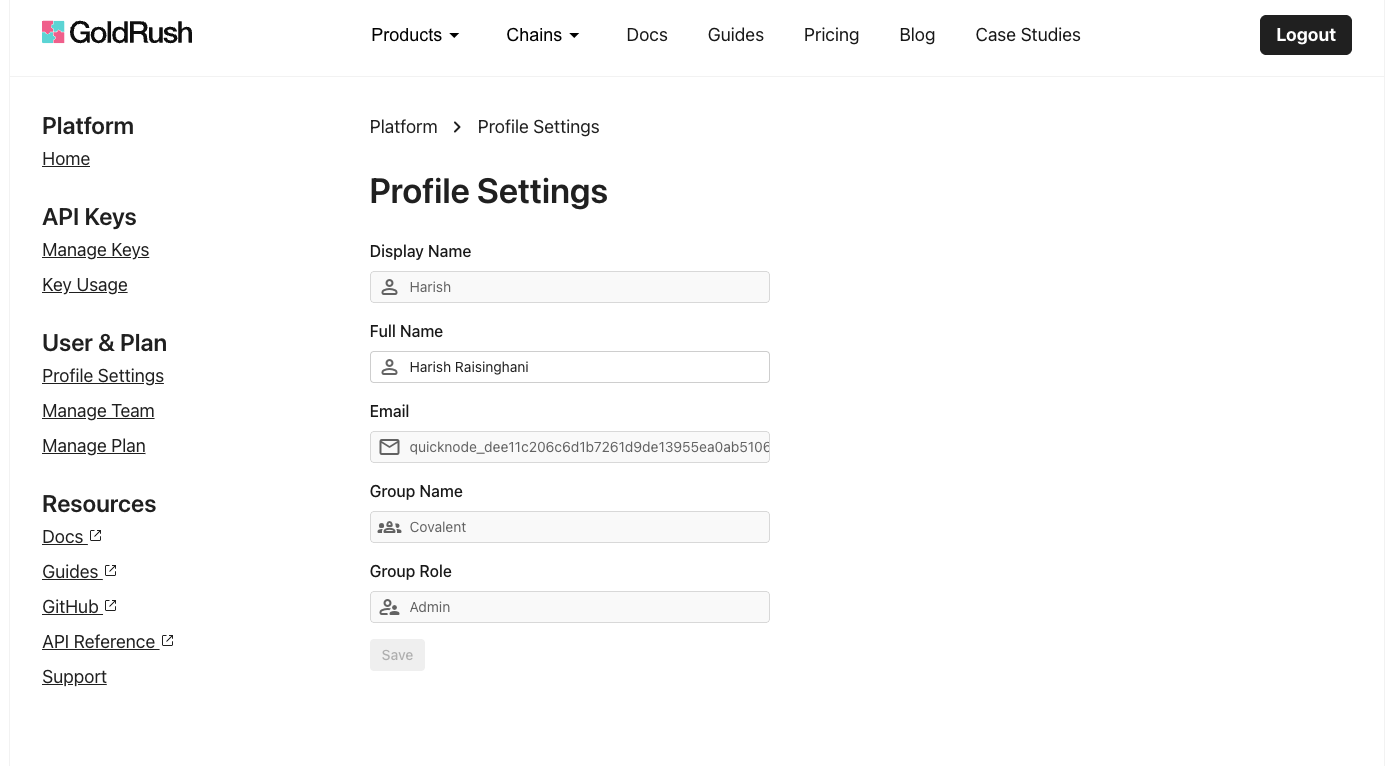
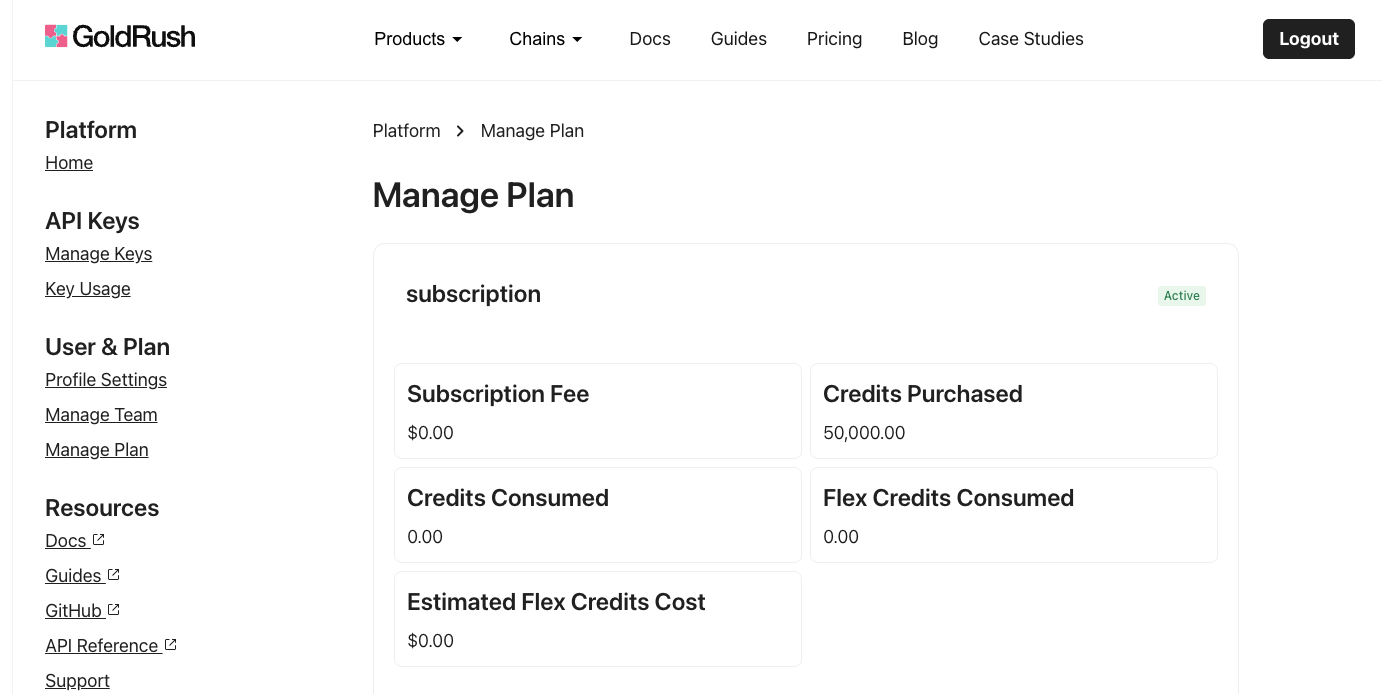
- Check the Manage Plan tab to confirm your Credits Purchased matches your subscription.
- Check the Profile Settings tab to see your Email appear with a Quicknode identifier (e.g.